
Hosted by site sponsor WebMate.
White & Black MacBook Q&A
Update Published August 12, 2021
To be notified of new Q&As, sign up for EveryMac.com's bimonthly email list.
How do you upgrade the RAM in the "White & Black" MacBook models? What type of RAM do they use? How much RAM do they actually support?
This Q&A explains how to upgrade the RAM in the white and black polycarbonate MacBook models shipped from 2006 until 2009 (model number A1181). These models should not be confused with the *Unibody* white MacBook models shipped in 2009 and 2010 (model number A1342), which EveryMac.com covers separately.
EveryMac.com also provides RAM upgrade instructions for the Aluminum "Unibody" MacBook models shipped in 2008 (model identifier MacBook5,1). The current "Retina" MacBook models do not have RAM that can be upgraded at all.
Users interested in upgrading the RAM will be pleasantly surprised to discover that the white and black MacBook models are quite a bit easier to upgrade than some previous Apple notebooks.
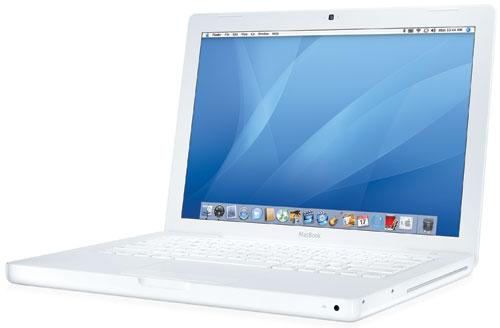
Photo Credit: Apple, Inc. (White MacBook)
Identification Help
The White or Black MacBook models can be collectively identified by the A1181 Model Number on the bottom of the notebook toward the hinge in tiny type.
There are seventeen different models that share this model number, though, so this identifier is not sufficient to pinpoint the specific type of RAM or its actual maximum capacity.
However, the EMC Number -- listed underneath the removable battery -- and the Model Identifier -- provided in software -- both are unique enough for the purposes of upgrading the RAM.
To locate the model identifier, select "About This Mac" under the Apple Menu on your computer and click the "More Info..." button. If the MacBook is running OS X 10.7 "Lion" or later, you will need to click the "System Report" button after clicking "More Info..." as well.
The Model Identifier and EMC Number for each of these models follow:
MacBook |
Subfamily |
Model ID |
EMC |
MacBook |
|||
MacBook |
|||
MacBook |
|||
Late 2006 |
|||
Late 2006 |
|||
Late 2006 |
|||
Mid-2007 |
|||
Mid-2007 |
|||
Mid-2007 |
|||
Late 2007 |
|||
Late 2007 |
|||
Late 2007 |
|||
Early 2008 |
|||
Early 2008 |
|||
Early 2008 |
|||
Early 2009 |
|||
Mid-2009 |
EveryMac.com's Ultimate Mac Lookup feature also can uniquely identify these systems by their Serial Numbers, and this is another method that can be used to find the precise model.
More details about specific identifiers are provided in EveryMac.com's extensive Mac Identification section.
Official RAM Details
The Apple Support Site has a detailed PDF on "How to Install Memory" in the MacBook that provides much of what you need to upgrade the stock RAM.
The Apple Support Document states that the MacBook:
Has two memory slots that you access by removing the memory door in the battery bay. Your MacBook comes with at least 512 MB of 667 MHz [or 800 MHz] Double Data Rate (DDR2) Synchronous Dynamic Random-Access Memory (SDRAM) installed.
Both memory slots can accept an SDRAM module that meets the following specifications:
- Double Data Rate Small Outline Dual Inline Memory Module (DDR SO-DIMM) format
- 1.25 inch or smaller
- 512 MB or 1 gigabyte (GB)
- 200-pin
- PC2-5300 DDR2 667 MHz Type RAM or PC2-6400 DDR2 800 MHz Type RAM
Official & Actual Maximum RAM
Apple officially supports a maximum of 2 GB of RAM in the original (Core Duo), "Late 2006" and "Mid-2007" MacBook models.
However, third-parties have discovered that the "Late 2006" and "Mid-2007" MacBook models -- both of which are equipped with a Core 2 Duo processor -- will work with 3 GB or 4 GB of RAM. Due to chipset limitations -- the same limitations that apply to the "Late 2006" MacBook Pro systems -- these models can hold 4 GB of RAM but cannot fully utilize the memory beyond 3 GB due to the possibility of memory "overlap".
For these subsequent MacBook models -- Apple officially supports 4 GB of RAM, but, again, third-parties have found that these systems actually can support 6 GB of memory (using a mismatched 2 GB and 4 GB pair of memory modules).
For your convenience, the memory type and maximum memory capacity of each model are summarized below:
MacBook |
DDR2 RAM Type |
Max RAM |
667 MHz PC2-5300 |
2 GB |
|
667 MHz PC2-5300 |
2 GB |
|
667 MHz PC2-5300 |
2 GB |
|
667 MHz PC2-5300 |
3 GB* |
|
667 MHz PC2-5300 |
3 GB* |
|
667 MHz PC2-5300 |
3 GB* |
|
667 MHz PC2-5300 |
3 GB* |
|
667 MHz PC2-5300 |
3 GB* |
|
667 MHz PC2-5300 |
3 GB* |
|
667 MHz PC2-5300 |
6 GB† |
|
667 MHz PC2-5300 |
6 GB† |
|
667 MHz PC2-5300 |
6 GB† |
|
667 MHz PC2-5300 |
6 GB† |
|
667 MHz PC2-5300 |
6 GB† |
|
667 MHz PC2-5300 |
6 GB† |
|
667 MHz PC2-5300 |
6 GB† |
|
800 MHz PC2-6400 |
6 GB† |
* These models officially support 2 GB of RAM. However, third-parties have been able to successfully upgrade these systems to 3 GB or 4 GB of RAM (it can hold 4 GB but cannot fully utilize the memory beyond 3 GB).
† These models officially support 4 GB of RAM, but third-parties have been able to upgrade the system to 6 GB of RAM using one 2 GB and one 4 GB memory module. As re-discovered by a helpful reader, it is possible to physically install 8 GB of RAM in these models, and it will show up as installed, but as soon as RAM in excess of 6 GB is used, performance will "nose dive."
RAM Performance Tests
For all of these MacBook systems, Apple reports that "for best performance, fill both memory slots, installing an equal memory module in each slot." Given the slower "integrated graphics," the MacBook is heavily dependent on system RAM, and consequently, Apple reports that installing equal RAM in each slot is important for maximum graphics performance.
Site sponsor Other World Computing posted detailed test results comparing the performance of different MacBook models configured with different "official" and "unofficial" memory configurations up to 4 GB.
Unsurprisingly, matched RAM is ideal, but the extra performance boost provided by a mismatched larger configuration is better than a matched smaller configuration. In other words, 3 GB mismatched (2 GB + 1 GB) provides higher performance than 2 GB matched (1 GB + 1 GB).
RAM Upgrade Video Instructions
The Apple document provides installation instructions which should be read in their entirety before one installs memory.
However, this video from YouTuber "The 8-Bit Guy" is even better:
After watching the video, it should be clear that upgrading the RAM in these models is a straightforward endeavor. However, if you do not feel comfortable -- or have the time -- to perform the upgrade yourself, hiring a professional never is a bad idea.
MacBook RAM Purchase Options
Just because RAM meets the minimum listed criteria does not mean that it will necessarily function as intended in your Mac. Be sure to buy from a quality vendor that has tested their RAM with the specific type of MacBook to ensure full compatibility.
In the US (and many other countries), site sponsor Other World Computing sells memory as well as storage for just about all MacBook models for do-it-yourself upgrades.
In Germany, site sponsor CompuRAM sells quality memory for all MacBook models with affordable delivery country-wide and in person pick up and professional installation service available in Munich.
Also see:
- How do you upgrade the hard drive in the "White & Black" MacBook models? Do these models support an SSD?
- How do you upgrade the RAM in the White "Unibody" MacBook models (A1342)? What type of RAM do they use? How much RAM do they actually support?
- How do you upgrade the RAM in the Aluminum "Unibody" MacBook models (MacBook5,1)? What type of RAM do they use? How much RAM do they actually support?
Permalink | Report an Error/Typo | Sign Up for Site Update Notices
<< White & Black MacBook Q&A (Main)
Established in 1996, EveryMac.com has been created by experts with decades of experience with Apple hardware. EveryMac.com includes, and always has included, original research incorporating detailed, hands-on inspection of packaging, computers, and devices as well as extensive real-world use. All information is provided in good faith, but no website or person is perfect. Accordingly, EveryMac.com is provided "as is" without warranty of any kind whatsoever. EveryMac.com, and the authors thereof, shall not be held responsible or liable, under any circumstances, for any damages resulting from the use or inability to use the information within. For complete disclaimer and copyright information please read and understand the Terms of Use and the Privacy Policy before using EveryMac.com. Copying, scraping, or use of any content without expressed permission is not allowed, although links to any page are welcomed and appreciated.